
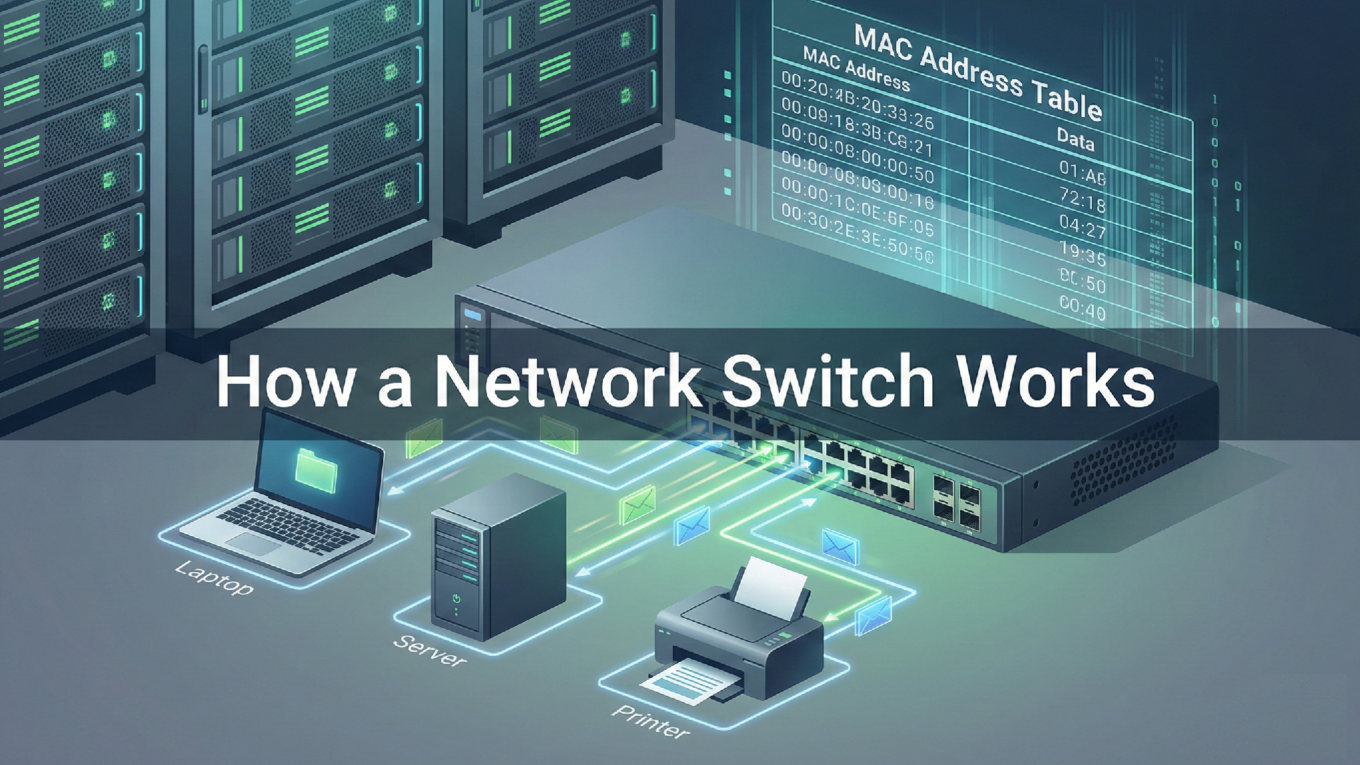
How a Network Switch Works
Introduction: What is a Network Switch?
In the world of networking, a switch is the “brain” of the Local Area Network (LAN). While a router connects different networks together (like your office to the Internet), a switch connects devices within the same network.
Operating primarily at Layer 2 (Data Link Layer) of the OSI model, a switch is designed to receive, process, and forward data to the specific destination device. Unlike the legacy “hubs” of the past that broadcasted data to everyone, a switch is intelligent and efficient.
Enterprise Use Cases & Examples
Modern Cisco switches do much more than just move data. In an enterprise environment, they serve as the foundation for security, power, and segmentation.
- VLAN Segmentation: Dividing a single physical switch into multiple logical networks (e.g., separating “Guest Wi-Fi” from “Accounting”).
- Power over Ethernet (PoE): Delivering electricity over the same category cable used for data to power IP phones, wireless access points, and security cameras.
- High Availability (Stacking): Linking multiple physical switches together to act as one single logical unit for redundancy and increased port density.
- Quality of Service (QoS): Prioritizing voice and video traffic over standard web browsing to ensure crystal-clear communication.
The Mechanics: How a Switch Works (Step-by-Step)
A switch makes forwarding decisions based on MAC Addresses. It maintains a dynamic database called a MAC Address Table (or CAM Table). Here is the 4-step process of how every frame is handled:
Step 1: Learning
When a device (like a laptop) sends a frame, the switch looks at the Source MAC Address. If that address isn’t in the MAC table, the switch adds it along with the port number it arrived on.
Step 2: Flooding (The “Unknown Unicast”)
If the switch doesn’t know where the Destination MAC Address is, it sends the frame out of every port except the one it came in on. This ensures the frame eventually reaches the intended target.
Step 3: Forwarding
Once the destination device replies, the switch learns its location. Now, when data is sent between these two devices, the switch performs a “Unicast” transmission, sending the data directly to the specific port.
Step 4: Filtering
The switch will not forward a frame back out the same port it was received on (preventing basic loops) and will drop frames that are destined for the same segment they originated from.
Basic Cisco Switch Configuration
To get an enterprise switch up and running, you need to define its identity and configure the ports for end-users.
! Enter global configuration mode
Switch# configure terminal

! Assign a hostname
Switch(config)# hostname Core-Switch-01

! Create a VLAN
Core-Switch-01(config)# vlan 10
Core-Switch-01(config-vlan)# name Sales_Department
Core-Switch-01(config-vlan)# exit

! Configure an interface for an end-user device
Core-Switch-01(config)# interface GigabitEthernet0/1
Core-Switch-01(config-if)# switchport mode access
Core-Switch-01(config-if)# switchport access vlan 10
Core-Switch-01(config-if)# spanning-tree portfast
Core-Switch-01(config-if)# no shutdown
Best Practices & Troubleshooting
Managing switches requires a proactive approach to security and loop prevention. Here are the top tips for maintaining a healthy Layer 2 environment.
1. Spanning Tree Protocol (STP)
Always ensure STP is enabled. If someone accidentally plugs both ends of an ethernet cable into the same switch, STP will detect the loop and shut down the redundant port, preventing a broadcast storm that could crash your entire network.
2. Implement Port Security
To prevent unauthorized devices from joining your network, use Port Security to limit the number of MAC addresses allowed on a single port.
3. Verify the MAC Table
If a device cannot communicate, the first thing a Cisco engineer checks is the MAC address table to see if the switch even sees the device.
Core-Switch-01# show mac address-table dynamic
This command will show you exactly which devices are connected to which ports, which is the “Source of Truth” for Layer 2 troubleshooting.